BlogsHow to Change GB WhatsApp Home Screen Wallpaper
How to Change GB WhatsApp Home Screen Wallpaper
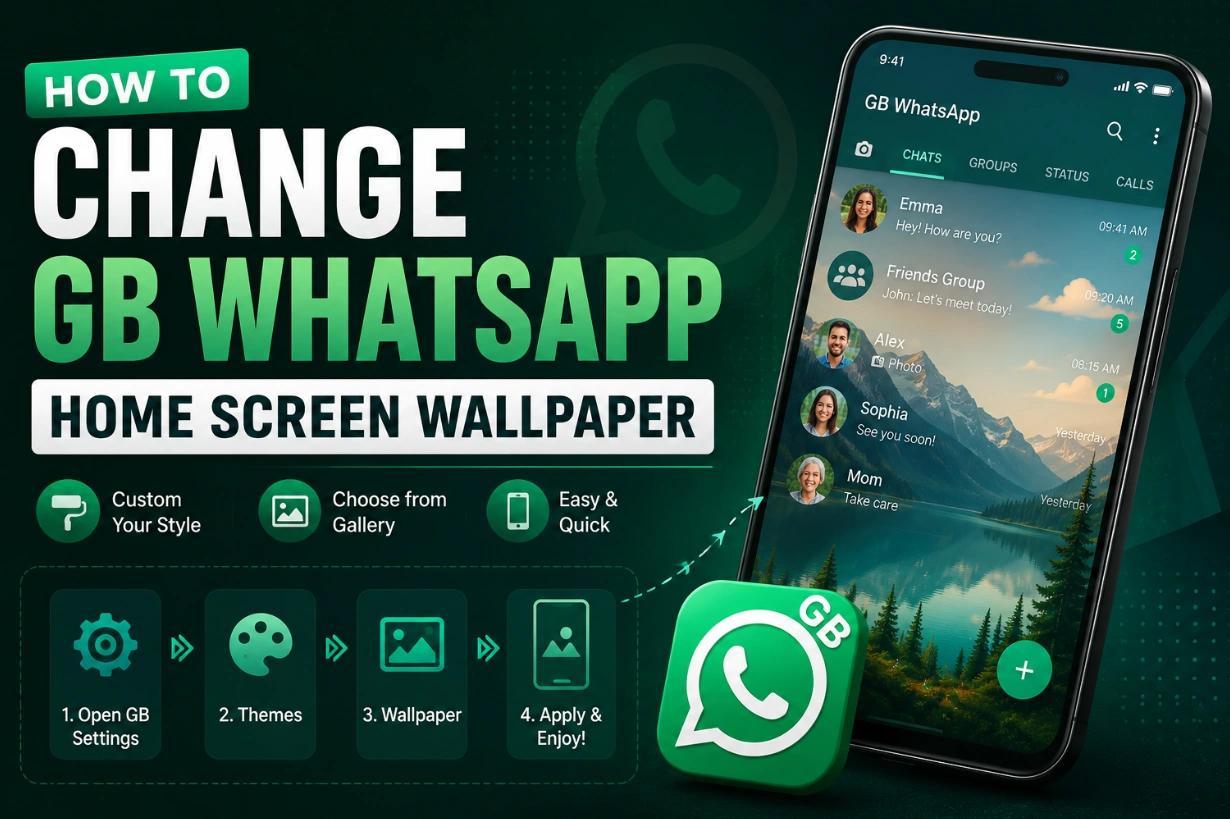
GB WhatsApp gives you more control over the look of your chats and home screen than the standard WhatsApp app. One popular customization option is changing the home screen wallpaper.
If you want to use your own picture or a different background, you can usually change it from the theme or home screen settings.
Change Home Screen Wallpaper Guide
Follow these steps:
- Open GB WhatsApp on your Android phone.
- Tap the three-dot menu in the top-right corner.
- Open GB Settings.
- Go to Themes or Home Screen settings.
- Look for the Wallpaper or Background option.
- Select an image from your phone or choose one of the available backgrounds.
- Adjust the image if needed and tap Apply or Save.
The names and locations of these options can be different depending on your GB WhatsApp version.
Can I Use My Own Photo?
Yes. If your version supports custom wallpaper, you can select a photo stored on your phone and use it as your home screen background.
Choose a clear image that is not too bright or busy so that chat names and icons remain easy to see.
How to Restore the Default Wallpaper
If you want to remove the custom background, return to the same wallpaper settings and select the default or original wallpaper. Save the changes and the standard background will be restored.
Why Can't I Find the Wallpaper Option?
Older and newer GB WhatsApp versions may use different menus. If you cannot find the option, check GB Settings, Themes, and Home Screen settings.
Updating to a compatible version may also provide newer customization options.
Final Tips
Changing the home screen wallpaper is a simple way to personalize GB WhatsApp. Before changing themes or updating the app, it is a good idea to keep a backup of your important chats and media.